
Introduction:
Disable iPhone predictive text in iOS 26(Step by step Guide). If you’ve ever typed a simple message and your iPhone suddenly changes your words into some thing completely different you’re not alone. predictive text can
feel helpful at first but over time it often becomes frustrating.
In iOS 26 Apple has made predictive text smarter but not necessarily more accurate for everyone . some users in Love it. Others want it gone immediately.
In this complete guide I’II show you how to disable i phone predictive text in iOS 26 step by step in simple and relatable way like explaining it to friend sitting next to you.
What is predictive Text on iPhone?
Before turning it off, let’s understand what it actually does.
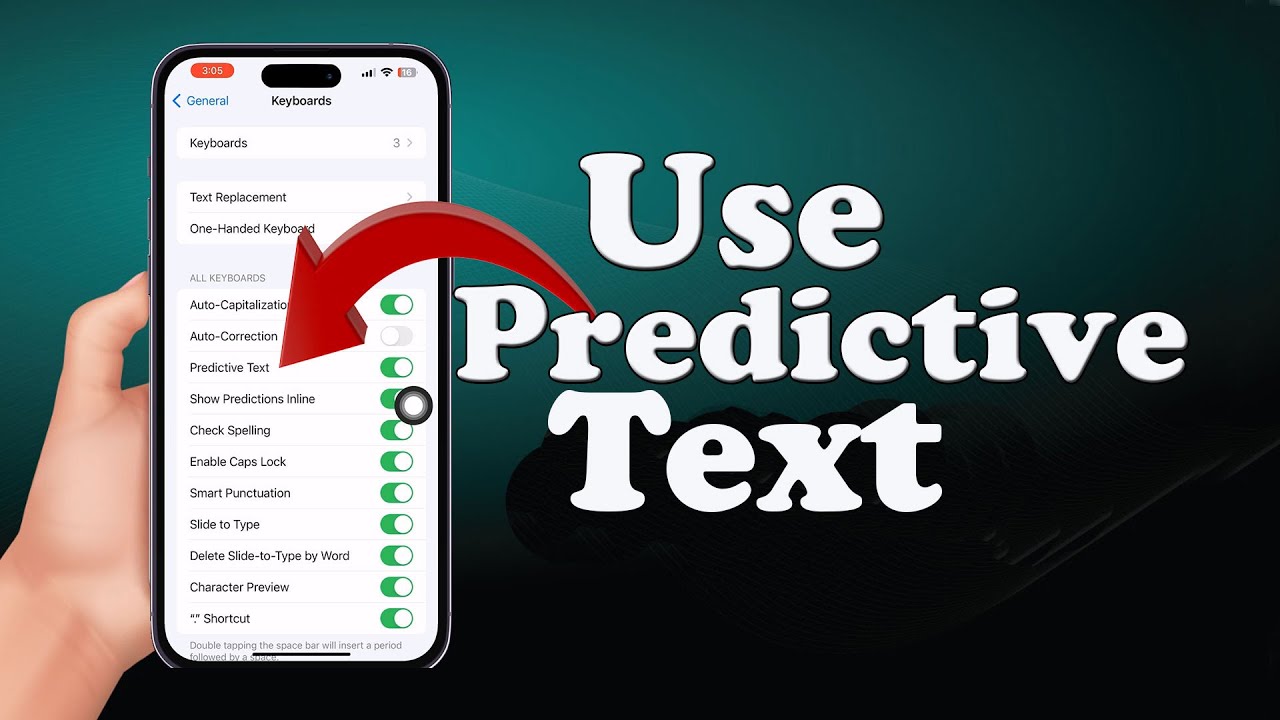
Predictive text is the feature that:
- Suggests words as you type
- Automatically completes sentences
- Learns your typing habits over time
For example:
You type “I am go…”
Your iPhone suggests: “going”, “good”, “gone”
Sounds useful, right?
But in real life, it often:
- Changes your intended meaning
- Suggests wrong words
- Interrupts fast typing
It’s like someone trying to finish your sentences… but guessing wrong most of the time.
Why People Disable Predictive Text in iOS 26
Here’s the honest truth: predictive text isn’t bad—it’s just not for everyone.
Let’s look at real-life reasons why people turn it off.
1. It Ruins Important Messages
Imagine sending a message like:
“I’ll call you later”
But predictive text changes it to:
“I’ll kill you later”
Not a great situation.
2. It Slows Down Fast Typers
If you type quickly, predictive suggestions can:
- Distract your focus
- Force you to double-check words
- Break your typing flow
3. It Doesn’t Understand Local Language or Slang
If you mix English with Urdu or Punjabi, predictive text:
- Often suggests irrelevant words
- Struggles with local phrases
4. Privacy Concerns
Is Predictive text learns from your typing habits.
Some users is feel uncomfortable with that level of tracking.
How to Disable is the iPhone Predictive Text in iOS 26 (Step-by-Step)
Now let’s to get straight to the main task.
Follow are these simple steps:
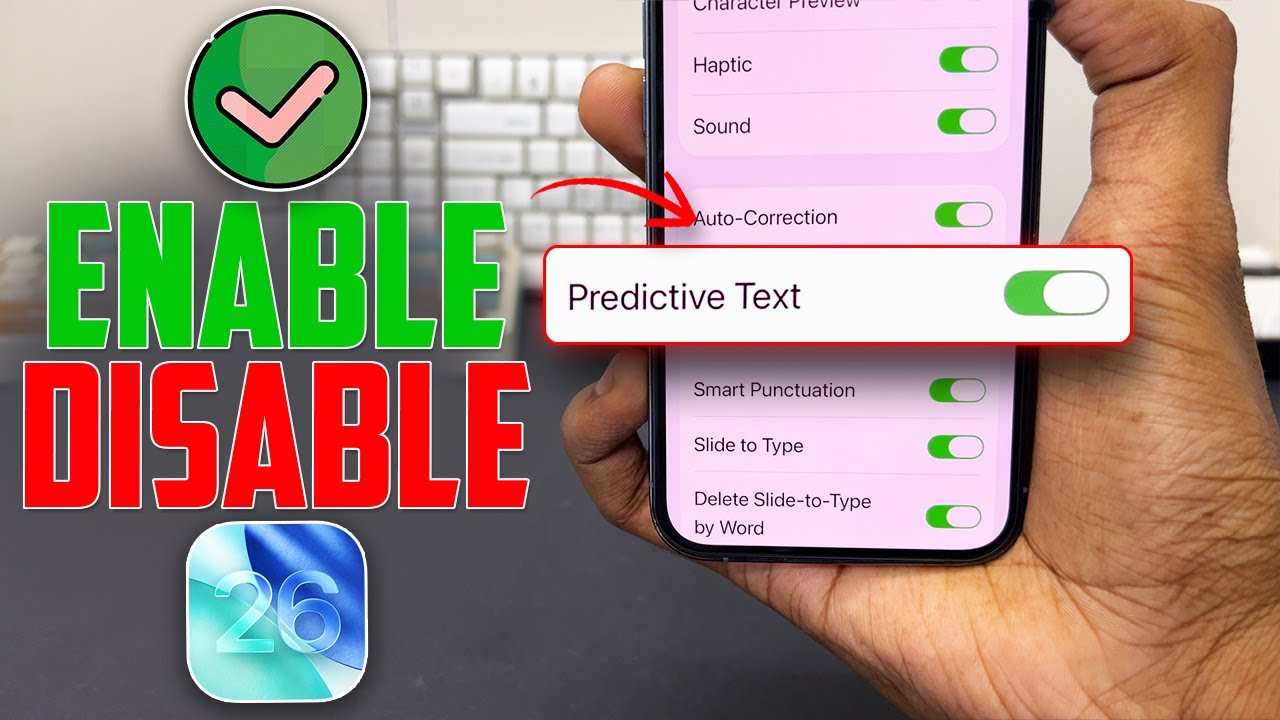
Step no 1: Is Open Settings
- Go to of your iPhone’s Settings app
Step 2: Tap “General”
- Scroll down
- Tap General
3: Tap “Keyboard”
- Inside General, find Keyboard
- Tap on it
Step 4: Turn Off “Predictive”
- Look for the option called Predictive
- Toggle it OFF
That’s it.
You’ve successfully disabled predictive text.
What Changes After You Turn It Off?
Once you disable predictive text:
What You Gain
- Full control over typing
- No unwanted word suggestions
- Faster typing for experienced users
What You Lose
- Word suggestions
- Auto sentence completion
- Typing assistance for beginners
The Real-Life Example (Easy to Understand)
Think of the predictive text like:
A friend sitting next to you while you type
- When ON → Friend keeps suggesting words
- When OFF → You type freely without interruption
Some people like help.
Others prefer independence.
Difference Middle Predictive Text and Autocorrect
More Many people confuse these two features.
Let’s clear it up.
Predictive Text
- Shows suggestions above keyboard
- You choose whether to use them
Autocorrect
- Automatically replaces words
- Works without asking you
Important Tip
If you still see wrong words being replaced after disabling predictive text, it means:
Autocorrect is still ON
How to Turn of the Autocorrect (Optional)
But If the predictive text wasn’t the main issue, you can also disable autocorrect.
Steps:
- Go to Settings
- Tap General
- Tap Keyboard
- Turn OFF Auto-Correction
When You Should NOT Disable Predictive Text
Let’s be fair—predictive text is helpful in some situations.
You should keep it ON if:
When You SHOULD Disable Predictive Text
You should turn it OFF if:
iOS 26 Improvements (But Still Not Perfect)
In iOS 26, Apple improved predictive text by:
- Using smarter AI suggestions
- Learning writing patterns faster
- Supporting more languages

iOS 26 Improvements (But Still Not Perfect)
But still:
It’s not perfect for everyone
Especially for bilingual users
Advanced Tip: Reset Keyboard Dictionary
If predictive text has learned too many wrong habits, you can reset it.
Steps:
- Go to Settings
- Tap General
- Tap Transfer or Reset iPhone
- Tap Reset
- Select Reset Keyboard Dictionary
This clears all learned words.
It’s like giving your keyboard a fresh start.
Does Disabling Predictive Text Improve Performance?
Short answer: Not significantly
But:
- It may reduce distractions
- Slightly improve typing speed
- Improve user experience
Does It Affect Battery Life?
No major impact.
Predictive text uses minimal power.
Turning it is off won’t drastically change battery life.
Is Common Mistakes Users Make
1. Turning Off the Wrong Setting
Users disable autocorrect but not predictive text (or vice versa).
2. Not Restarting Apps
Some apps may need to restart for changes to apply.
3. Expecting Instant Improvement
Typing habits take time to adjust.
FAQ Section
1. How do I disable predictive text on iPhone iOS 26?
Go to:
Settings → General → Keyboard → Turn OFF Predictive
2. Why is predictive text still showing after turning it off?
Make sure:
- You turned off the correct setting
- You restarted the app or keyboard
3. Does disabling predictive text to turn off autocorrect?
No.
They are separate features.
4. Can I turn predictive text back on?
Yes.
Just follow the same steps and toggle it ON.
5. Is predictive text useful?
Yes—for beginners or slow typers.
But not ideal for everyone.
6. Will it affect typing speed?
Depends on your habit:
- Fast typers → Faster without it
- Beginners → Slower without it
The Conclusion (Key Takeaways)
Disabling predictive text in the iOS 26 is simple—but the impact can be huge.
If you want to control, turn it OFF
If you need help, keep it ON
At the end of the day your iPhone should adapt to you—not the other way his around.
Think of it is like driving of a car:
- Predictive text = automatic mode
- Disabled = manual control
Both are the useful—just choose what suits your style.