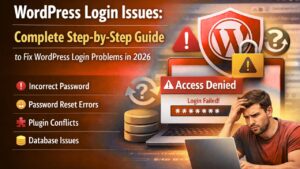
WordPress Login Issues: Complete Step by Step Guide to Fix WordPress Login Problems in 2026 Lets be honest.
Noting feels more frustraatig than being lock out of your website.
You open Your brower, type your domain.com/Wp-admin, enter your credential… and boom.\
-
Page refreshes.
-
Wrong password error.
-
Locked out message.
-
Blank screen.
-
Or worse — nothing happens.
If you facing WordPress login issues I want you to relax.
This is one of the most common WordPress problem in the world. and the good news?
It is almost always fixable.
In this guide, I’ll explain everything in a friendly, practical way — like helping a friend fix his site late at night before an important client meeting.
We’ll cover:
-
Why WordPress login issues happen
-
Step-by-step solutions
-
Real-life examples
-
Advanced troubleshooting
-
Prevention strategies
-
FAQ section
-
Pro-level tips
By the end, you won’t panic the next time this happens.
Why WordPress Login Issues Happen (Understanding the Root Cause)
Before fixing somethings, must understand why it breaks.
Think of your Words press site like a house.
If you can’t enter your house, possible reasons might be:
-
Wrong key
-
Broken lock
-
Security system activated
-
Address changed
-
Door jammed
Same concept applies to WordPress login issues.
Usually, login problems happen due to:
-
Incorrect username or password
-
Lost email access
-
Security plugin lockouts
-
Plugin conflicts
-
Theme conflicts
-
Corrupted browser cookies
-
Incorrect WordPress URL
-
Corrupted .htaccess file
-
Low PHP memory limit
-
Server configuration problems
Now let’s fix each one step-by-step.
Incorrect Username or Password (The Most Common WordPress Login Issue)
This sounds basic — but this causes more than 50% of WordPress login issues.
Sometimes:
-
Caps Lock is ON
-
Wrong email is used
-
Old password remembered incorrectly
-
Password manager filled wrong credentials
It’s like trying to open your car with the wrong remote.
How to Fix It
-
Doubal cheak spelling.
- Ensure Cape Lock is off.
-
Try copy-paste carefully.
-
Click “Lost your password?”
2. Resetting to Your WordPress Passwared Properly
If You forgot your passwared don’t worry.
Method 1: Reset via Email
-
Go to login page.
-
Click “Lost your password?”
-
Enter email or username.
-
Check your email.
-
Reset password.
Simple.
But what if you no Big have access to your email?
That’s when many people panic
Don’t.
Method 2: Reset Password via Database (phpMyAdmin)
This method fixes serious WordPress login issues when email reset fails.
Step 1: Login to Hosting
Open Cpanal or your hosting dashboard.
Step 2:Open php My Admin:
Find your WordPress database.
Step 3: Open wp_users Table
Locate your username.
Step 4: Edit user_pass
-
Select MD5 from dropdown
-
Enter new password
-
Save
Now try logging in again.
Problem solved.
3. WordPress Login Page Keeps Refreshing
You enter credentials.
Click login.
Page refreshes.
Still on login page.
This is usually caused by:
-
Corrupted cookies
-
Browser cache
-
Plugin conflict
Think of cookies like temporary ID cards. If they are damaged, WordPress cannot verify you.
Fix This WordPress Login Issue
-
Clear browser cookies
-
Clear cache
-
Try incognito mode
-
Try different browser
-
Disable browser extensions
80% of refreshing login issues are solved this way.
4. Locked Out After Too Many Failed Login Attempts:
Many security plugins limit login arrempt to protect against hackers..
After multiple wrong attempts, your IP gets blocked.
It’s like ATM locking your card after wrong PIN attempts.
How to Fix
Option 1: Wait 15–30 minutes
Option 2: Disable security plugin via FTP
Option 3: Ask hosting to whitelist your IP
5. Plugin Conflicts Causing WordPress Login Issues
Plugins are powerful — but they can also break things.
Especially:
-
Security plugins
-
Cache plugins
-
Custom login plugins
If a plugin conflicts, WordPress login issues may appear.
How to Disable Plugins Without Dashboard Access
-
Go to File Manager
-
Navigate to
/wp-content/ -
Rename
pluginsfolder toplugins-old
Try logging in.
If it works → one plugin is causing the issue.
Rename folder back and activate plugins one by one.
6. Theme Conflicts
Sometimes themes cause login errors.
Especially:
-
Custom themes
-
Poorly coded themes
-
Outdated themes
How to Switch to Default Theme ?
- Go to /wp _content /theme/
-
Rename your active theme folder
-
WordPress will switch to default theme automatically
Try logging in again.
7. Incorrect WordPress URL (After Migration or Domain Change)
This is very common after:
-
Website migration
-
Domain change
-
SSL installation
If siteurl or home URL is wrong, WordPress login issues will occur.
Fix via Database
-
Open phpMyAdmin
-
Go to
wp_options -
Check:
-
siteurl
-
home
-
-
Correct if necessary
8. Corrupted .htaccess File
The .htaccess file controls how your site handles requests.
If corrupted, login page may break.
Fix It
-
Rename
.htaccessto.htaccess-old -
Try logging in
-
Go to Settings → Permalinks
-
Click Save Changes
WordPress will regenerate it.
9. Increase PHP Memory Limit to Fix WordPress Login Issues
Sometimes the issue is not visible — but your server is running out of memory.
Think of it like trying to run heavy software on a low-RAM computer.
How to Increase Memory Limit:
Open wp_config .phpand add:
Open wp_config. php and add
Define (‘WP_Memory_LIMIT ;”256’):
Place it before:
Save and test login again.
If it doesn’t work, contact hosting provider.
10. Enable Debug Mode for Advanced Troubleshooting
If nothing works, enable debugging.
Add in wp-config.php:
define(‘WP_DEBUG_LOG’, true);
Check:
/wp-content/debug.log
It will show exact errors causing WordPress login issues.
Real-Life Example (Experience-Based Insight)
A client once called during Black Friday sale.
His WooCommerce store showed login refresh loop.
Problem?
Cache plugin conflict + low memory limit.
We:
-
Disabled plugin
-
Increased memory limit
-
Cleared cache
Store was live again in 20 minutes.
This is why understanding WordPress login issues saves money and stress.
How to Prevent WordPress Login Issues in the Future
Prevention is smarter than repair.
✔ Use strong passwords
✔ Enable Two-Factor Authentication
✔ Keep WordPress updated
✔ Update plugins regularly
✔ Use reliable hosting
✔ Backup weekly
✔ Limit login attempts carefully
Internal Linking Suggestions
For better SEO structure, link this article internally to:
-
“How to Secure Your WordPress Website”
-
“Best WordPress Security Plugins”
-
“How to Backup WordPress Website”
-
“Common WordPress Errors and Fixes”
-
“How to Migrate WordPress Site Safely”
This improves crawlability and user engagement.
FAQ – WordPress Login Issues
Why can not log into my WordPress dashboard?
Most common causes:
Most common causes:
-
Wrong credentials
-
Plugin conflict
-
Security lockout
-
URL misconfiguration
Why does my wordPress login page keep refreshing?
Usually corrupted cookies or cache issue.
Can hosting cause WordPress login issues?
Yes. Low PHP memory or server misconfiguration can block login access.
Is it safe to edit wp config. php?
Yes but always create a backup first.
Key Takeawayes
-
WordPress login issues are common.
-
Most problems are plugin or security related.
-
Database access can save you during emergencies.
-
Always keep backups.
Final Thought
Getting locked out of your WordPress site fees stressfull -especially if your business depends on it.
But remember:
WordPress login issues are usually technical hiccups — not disasters.
Once you understand the logic behind them, you stop panicking.
Instead, you troubleshoot confidently.
And that’s the difference between a beginner and a professional website owner.