A Complete Guide to Fixing 500 Internal Server Error in WordPress with Step-by-Step Troubleshooting. If your websites is of still showings the 500 internet Server Error after tryings basic troubleshooting methods don’t panics.
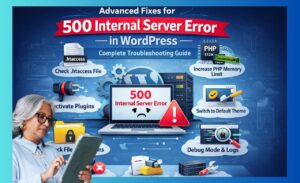
Now we move to deeper technical solutions.
These methods are used when the problem is hidden inside server configuration or system files.
Take your time and follow carefully.
Check File Permissions
Sometimes the error appears because your files or folders do not have correct permissions.
WordPress needs proper permission to read and write files.
Recommended Permissions
-
Folders → 755
-
Files → 644
How To Check It
-
Open cPanel
-
Go to File Manager
-
Right-click on folders or files
-
Click Change Permissions
If permission are incorrect fix them.
Think of permission like doors in a house.
If doors are locked incorrectly, the system cannot access files — and errors appear.
Correct permissions sometimes fix the issue instantly.
Check Server Error Logs
Most beginners ignore error logs — but professionals always check them.
Error logs show the real reason behind the crash.
Instead of guessing, you can see the exact problem.
How To Check Error Logs
-
Go to Hosting Dashboard
-
Find the Error Logs section
OR
-
Open:
cPanel → Metrics → Errors
Look for recent errors.
Usually logs show:
-
Plugin name
-
File name
-
Line number
This information helps you identify the broken file quickly.
Delete the .htaccess File (Test Method)
If renaming .htaccess did not work, try deleting it completely as a test.
-
Open File Manager
-
Delete the
.htaccessfile -
Refresh your website
If the site works — the file was corrupted.
After that:
Go to
Dashboard → Settings → Permalinks → Click Save
WordPress will automatically generate a fresh .htaccess file.
⚠ Always create a backup before deleting files.
Check Database Connection
Sometimes the 500 error hapens because your website cannot connect to the database.
Your website needs database access to load content.
How To Test It
Open:
wp-config.php
Check:
-
Database Name
-
Database Username
-
Database Password
-
Database Host
Make sure they match your hosting database settings.
If any detail is incorrect — fix it.
If the database connection fails — your site cannot load properly.
Increase Upload Limits
Large file uploads can trigger server errors.
You can increase limits inside PHP settings.
Add or modify:
max_execution_time=300
You can change these from:
Hosting → PHP Settings
This helps when:
-
Image uploads fail
-
Plugin uploads fail
-
Theme uploads fail
Check Disk Space
If your hosting storage is full:
The server cannot create temporary files.
Then the 500 error appears.
How To Check
Go to:
Hosting Dashboard → Disk Usage
If storage is 100%:
-
Delete old backups
-
Remove unused themes
-
Clean unnecessary logs
-
Delete temporary files
Free space often solves the problem.
Switch PHP Version (Testing Purpose)
Sometimes the latest PHP version causes compatibility issues.
Try switching to:
-
An older supported PHP version
Test your website.
If it works — the issue is compatibility.
Then adjust the PHP version accordingly.
Use a Staging Environment
If your website is important or generating revenue:
Do not test directly on the live site.
Instead:
-
Create a staging copy
-
Test fixes there
-
Apply the working solution to the live site
This prevents downtime.
Many hosting providers offer one-click staging tools.
Scan for Malware
Malware can modify:
-
.htaccess
-
Core files
-
Theme files
And that leads to unexpected server errors.
Use:
-
WordPress security plugins
-
Hosting malware scanner
Scan your website.
If is infected files are foundsremovesthem for restore from backup.
Quick of Troubleshooting Checklist
Use this fast checklist:
✔ Backup created
✔ .htaccess tested
✔ Plugins disabled
✔ Theme tested
✔ Memory increased
✔ PHP version checked
✔ File permissions fixed
✔ Error logs reviewed
If everything fails — contact hosting support.
When To Contact Hosting Support
Contact support if:
-
Server logs show internal server failure
-
Memory limit cannot be increased
-
Server configuration is broken
-
Website crashes without clear reason
Good hosting support can fix server-level issues quickly.
Final Advice
The 500 Internal Server Error is not dangerous.
It is usually caused by:
-
Plugin conflicts
-
Broken configuration
-
Corrupted files
-
Memory limits
Most cases are fixed by:
-
Resetting .htaccess
-
Disabling plugins
-
Increasing memory
Stay calm.
Follow troubleshooting step by step.
Your website will recover.
Advanced Optimization After Fixing 500 Internal Server Error
After your website starts working again, your next step should not be stopping. 500 Internal Server Error
Many website owners fix the error — and then forget to optimize.
That is a mistake.
If you optimize properly after recovery, chances of the error returning become very low.
Let’s improve stability.
Update Everything Carefully
Once the site is back online:
Update:
-
WordPress core
-
Themes
-
Plugins
But do it one by one.
Do not update everything at the same time.
Why?
If something breaks after update — you will not know which update caused the problem.
Best practice:
Update plugin → Test site
Update next plugin → Test again
Slow and control updates reduce risk
Remove Unused Plugings and Themes:
Many websites install plugins for testing and forget to delete them.
Unused plugins increase:
-
Security risks
-
Server load
-
Compatibility problems
Go to:
Dashboard → Plugins
Delete everything that is:
-
Not active
-
Not needed
Also remove extra themes.
Keep:
-
One active theme
-
One backup theme
Cleaner website = More stable website.
Optimize Your Database
After fixing server errors, your database might still contain:
-
Old revisions
-
Spam comments
-
Trash posts
-
Temporary data
Cleaning database improves performance.
You can optimize it using:
-
A database optimization plugin
-
Or phpMyAdmin manually
Schedule database cleanup once every month.
This prevents heavy load problems later.
Enable Automatic Backup System
Do not rely on manual backup.
Set up automatic backup system that:
-
Saves daily backup
-
Stores backup outside hosting
-
Keeps multiple restore points
Good backup tools allow:
One-click restore
Cloud storage backup
If error happens again — you restore quickly.
Backup is your safety net.
Improve Server Performance
If your hosting is slow or overloaded:
Even small traffic spikes can trigger errors.
Ways to improve performance:
-
Enable caching
-
Use CDN properly
-
Compress images
-
Minify CSS & JavaScript
-
Enable object caching
Better performance reduces server stress.
Less stress = Fewer errors.
Monitor Website Health Regularly
After fixing the issue:
Start monitoring your website health.
Check monthly:
-
Error logs
-
CPU usage
-
Memory usage
-
Database size
If you detect unusual activity early — you can fix problems before they become serious.
Prevention is always better than emergency fixing.
Create Emergency Recovery Plan
Professional website owners create a simple recovery plan.
Your plan should include:
-
Hosting login details
-
Backup access
-
Plugin list
-
Theme files
-
Important configuration files
Keep this information stored safely.
If disaster happens — recovery becomes fast.
Protect Core Files from Unauthorized Changes
To reduce future risk:
-
Restrict file editing access
-
Disable theme editor from dashboard
-
Limit admin access
You can disable of file editing by addings this line to wp-config.php:
This prevents accidental or malicious code changes.
Better security = Lower chance of system corruption.
Use Security Plugins Smartly
Security plugins help protect your site from:
-
Brute force attacks
-
Malware
-
Unauthorized login attempts
But do not install too many security plugins.
Choose one reliable plugin.
Too many security tools can conflict and create new errors.
Balance is important.
Test Your Website After Major Changes
Whenever you:
-
Install new plugin
-
Change theme
-
Upgrade PHP
-
Modify server settings
Always test:
-
Homepage
-
Admin dashboard
-
Important pages
-
Forms
-
Payment system
Testing prevents hidden issues.
Long-Term Stability Strategy
If you want long-term protection against 500 Internal Server Error:
Follow this routine:
Weekly:
Update plugins
Check logs
Monthly:
Optimize database
Remove unused files
Quarterly:
Full backup
Performance review
Security scan
Consistent maintenance keeps your website stable.
Final Professional Advice
the 500 Internal server Errorb is not a disaster.
It is a warning signal.
It tells you:
Something inside the system needs attention.
Most causes are solved by:
Fixing corrupted of files
-
Adjusting permissions
-
Increasing memory
-
Disabling conflicting plugins
If you stay calm and follow structured troubleshooting — you can fix it yourself.
Your website stability depends on regular maintenance.